
How to Get Great Photo Edits Without Paying – Free Tools & Techniques
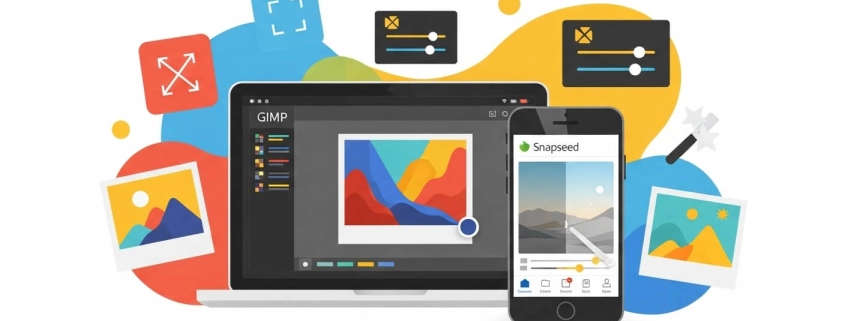
Want to make your photos look professional without spending money?
Good news — you don’t need expensive tools like Photoshop to create stunning edits. Many free photo editors can handle everything from quick touch-ups to advanced effects.
If you ever need expert-level results, try Expert Clipping’s clipping path services. Their team creates pixel-perfect cuts and smooth edges for any product photo.
Which photo editor is 100% free?
Several apps are completely free and never ask you to pay. The most popular ones include:
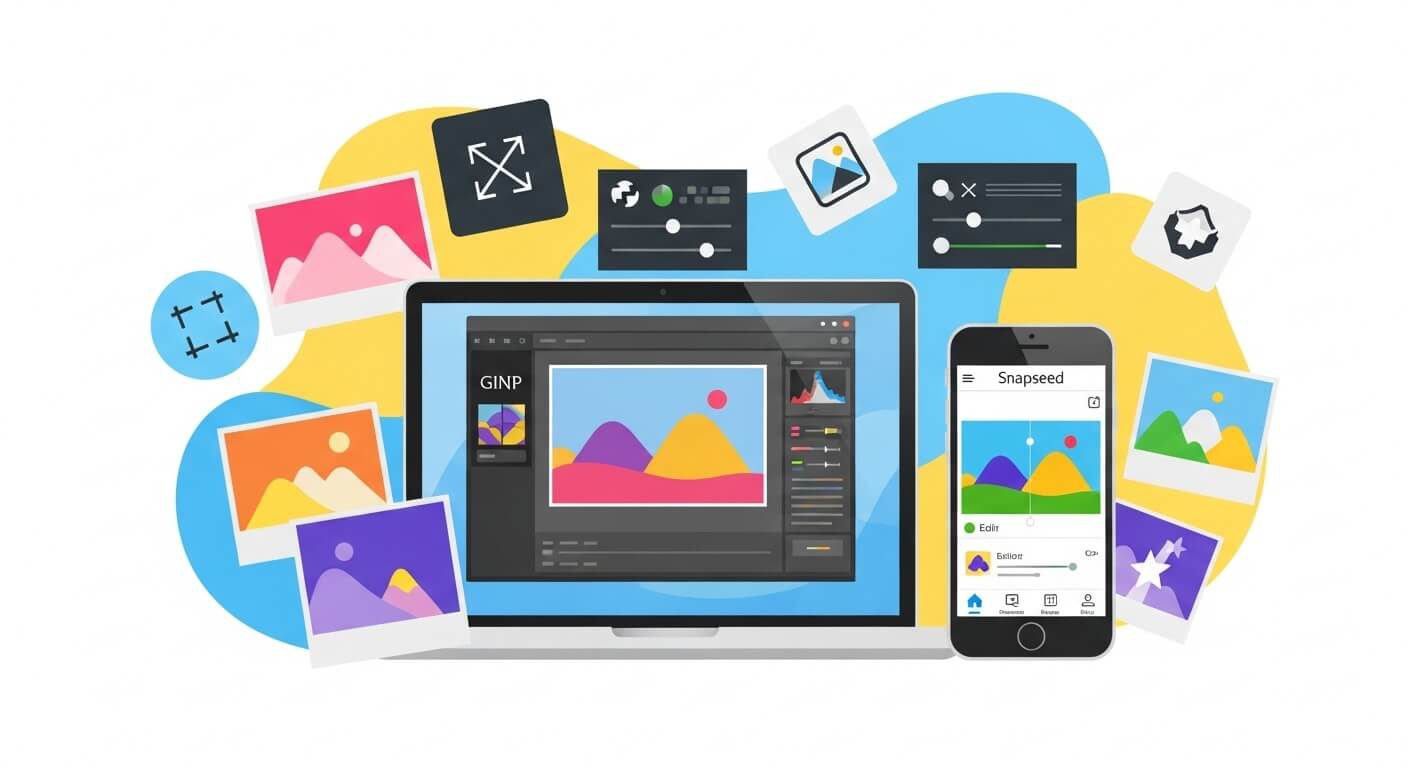
- GIMP (desktop) – A robust Photoshop alternative with no hidden costs.
- Snapseed (mobile) – A Google app with zero ads or subscriptions.
- Photopea (web-based) – Free to use, though ad-supported.
Short Answer: GIMP and Snapseed are 100% free forever.
If you ever edit product photos, but need clean, sharp outlines, a photo clipping path service can help refine your edges perfectly.
Is there a free photo editing app that doesn’t require payment?
Yes! Snapseed is one of the best free photo editing apps with no subscriptions or locked features. Unlike some apps that advertise as free but push upgrades, Snapseed gives you professional-level tools without charging.
Short Answer: Snapseed is the best free, no-payment-ever app.
For background cleanup, you can also try background removal services if you want quick and flawless results.
Which is the best photo editing app for free?
The “best” app depends on your needs:
- For phones: Snapseed (iOS/Android) – simple, powerful, and free.
- For creative filters: VSCO – free filters with optional upgrades.
- For design & social media: Canva – great for adding text and graphics.
- For desktop users: GIMP – full-featured, like Photoshop.
Short Answer: Snapseed for mobile, GIMP for desktop.
And if you ever need to remove models from clothes, explore ghost mannequin services — perfect for eCommerce fashion photos.
What is the closest thing to Photoshop that’s free?
If you’re looking for a free Photoshop twin, try Photopea. It runs in your browser, supports .PSD files, and looks almost identical to Photoshop. On desktop, GIMP comes closest with its advanced layer and retouching tools.
Short Answer: Photopea (browser) and GIMP (desktop).
Want expert-level realism? Add depth and shine with drop shadow services or reflection shadow effects for a polished finish.
Free Editing Software Options
For Desktop
- GIMP (GNU Image Manipulation Program)
- Best for: Complex edits, retouching, and layers.
- Pros: 100% free, open-source, cross-platform.
- Cons: Steeper learning curve.
- Photopea (Web-based)
- Best for: Editing .PSD files online.
- Pros: Looks and feels like Photoshop.
- Cons: Ad-supported, slower than desktop apps.
- PhotoScape X
- Best for: Both simple and advanced edits.
- Pros: RAW editing, batch processing.
- Cons: Interface can feel dated.
For Mobile (iOS & Android)
- Snapseed
- Best for: Fast, professional-quality edits.
- Pros: No ads, no hidden costs.
- Features: Selective edits, healing tool, filters.
- Adobe Lightroom Mobile (Free version)
- Best for: Detailed control of exposure and color.
- Cons: Some advanced tools require a subscription.
- VSCO
- Best for: Artistic, film-inspired looks.
- Pros: Free filters and editing basics.
- Canva
- Best for: Social media posts and simple edits.
- Pros: Background remover, templates, and design tools.
5 Basics of Photo Editing You Can Learn for Free
No matter which app you use, mastering these basics will instantly improve your photos:
- Adjust brightness & contrast – Brings out details in highlights and shadows.
- Crop & straighten – Fix crooked horizons and improve framing.
- Correct white balance – Makes colors look natural and true to life.
- Tweak vibrance & saturation – Boost colors without making them fake.
- Remove blemishes – Use healing or clone tools for small distractions.
Short Answer: Even small tweaks in brightness, crop, and color balance can make a huge difference.
Need professional touch-ups? Try photo retouching services for spotless, natural results.
Tips for Editing Like a Pro (For Free)
- Start subtle – Avoid over-editing; less is often more.
- Use adjustment layers (when available) – Non-destructive edits let you undo changes anytime.
- Experiment – Try different apps and tools to see what fits your style.
- Learn from tutorials – Free YouTube guides on GIMP and Photopea can speed up your learning.
- Rely on Expert Clipping – for expert-level edits like color change services or image masking when you want clean and smooth results.
Short Answer: Practice, patience, and the right free tools will make your edits look professional.