
Photo Masking Techniques: A Complete Beginner-Friendly Guide
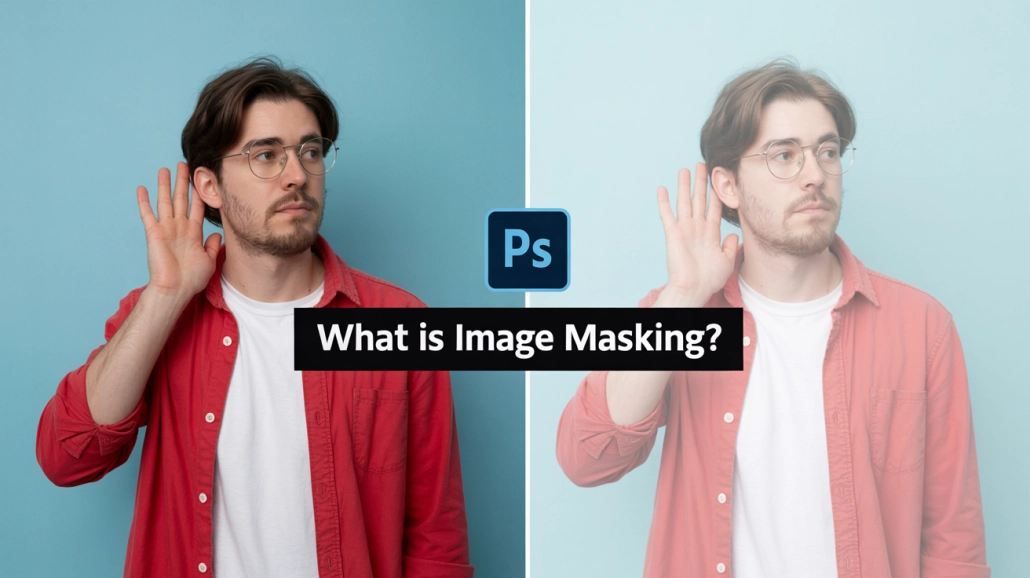
Before we dive in, here’s something simple: Photo masking techniques help you isolate, refine, and reshape parts of an image without damaging the original photo. If you’ve ever wondered how professionals create flawless cutouts or smooth hair extractions, masking is the secret tool behind the magic.
I’ve spent years experimenting with image masking, from Photoshop to Filmora masking to online masking tools. Today, I’m sharing everything I’ve learned in the simplest way possible—just like talking to a friend over coffee.
Contents
- 0.1 Introduction to Photo Masking Techniques
- 0.2 What Is Photo Masking?
- 0.3 Types of Image Masking (Explained Simply)
- 0.4 Layer Masking in Photoshop
- 0.5 Clipping Masks vs. Layer Masks
- 0.6 Hair Masking for Complex Edges
- 0.7 Alpha Channel Masking
- 0.8 Using Masking in Filmora, Lightroom & Other Editors
- 0.9 Using Photo Masking Software & Online Tools
- 0.10 Masking for Product Photos
- 0.11 Masking in Video Editing
- 0.12 Creative Uses of Masks (Fun Ideas)
- 0.13 Common Mistakes and How to Avoid Them
- 0.14 Why Expert Clipping Can Help You
- 1 Conclusion
Introduction to Photo Masking Techniques
Photo masking techniques let you edit specific parts of a picture without damaging the original image.
Masking is the digital version of placing a stencil over something—you show what you want and hide what you don’t. Whether you’re creating a picture mask, removing backgrounds, or editing only a face, masking editing gives you total control.
What Is Photo Masking?
Photo masking is a non-destructive editing method used to hide or reveal parts of an image.
If you’ve ever wished you could cut something out of a photo but still keep it “just in case,” masking is the superhero you need.
Masking photo editing works in tools like Photoshop, GIMP, Luminar, Affinity, and even online face mask photo editors. Instead of deleting pixels, you simply cover them—like using masking tape pictures to protect areas while painting.
Types of Image Masking (Explained Simply)
Different masking types help you handle soft edges, sharp edges, and color-based selections.
Here are the main types:
a) Layer Masking
Perfect for general edits—hide/reveal parts of a layer.
b) Clipping Mask
Great for shaping images such as Canva mask image in shape styles.
c) Hair/Alpha Masking
Used for hair, fur, or tricky edges.
d) Color Masking
Targets specific colors—often used in Luminar AI masking.
e) Vector Masking
Clean, sharp edges for logos or objects.
Layer Masking in Photoshop
Layer masks let you control transparency using black and white.
With layer masks, black hides, white reveals, and gray partially shows. You can:
-
Edit mask in Photoshop
-
Edit layer mask Photoshop
-
Photoshop edit vector mask
-
Mask photo black and white
-
Mask a photo in Photoshop
If you ever mess up, simply paint with the opposite color. It’s completely reversible.
Clipping Masks vs. Layer Masks
Layer masks hide parts of a layer; clipping masks use one layer to control another.
Think of clipping masks like cookie cutters. You can:
-
Shape photos
-
Insert images into text
-
Create marketing banners
Tools like image mask illustrator and affinity designer mask use clipping masks heavily.
Hair Masking for Complex Edges
Hair masking isolates soft edges such as hair, fur, or feathers.
If you ever tried removing a background around curly hair, you know the struggle. That’s where:
-
Hair masking photo
-
Hair masking picture
-
Masking hair in Photoshop
-
Vertus Fluid Mask 3
come in handy.
Professional editors like the team at Expert Clipping use advanced techniques to handle hair masking in minutes.
Alpha Channel Masking
Alpha masking is perfect when you’re working with color contrast.
It’s ideal for:
-
Product images
-
Jewelry
-
Transparent objects
-
Smoke or fabric
Tools like rawtherapee masks or image to mask rely on alpha channels.
Using Masking in Filmora, Lightroom & Other Editors
Filmora masking and Lightroom masking make it easy for beginners to control specific areas.
Popular tools include:
-
Masking in Filmora
-
Filmora 11 masking
-
Masking in Filmora 9
-
Lightroom edit mask
-
Masking in Lightroom mobile
-
Luminar masking
-
Affinity Photo masking iPad
You can create transitions, reveal text, or hide objects in your videos using video editor with masking tools.
Using Photo Masking Software & Online Tools
Online masking tools offer fast results without needing expert software.
Some examples:
-
Photo masks online
-
Image masking online
-
Mask image online free
-
Photo mask editor online
-
Face mask editor online
-
Online mask photo editor
They’re great for beginners who want instant results.
Masking for Product Photos
Masking helps create clean, professional product images for eCommerce.
Product photos often need:
-
Background removal
-
Shadow creation
-
Color correction
-
Transparent mask image
This is where companies like Expert Clipping shine, providing professional photo masking services at scale.
Masking in Video Editing
Video masking helps hide or reveal subjects in motion.
Tools like:
-
Masking video editing
-
Sony Vegas mask
-
Premiere Pro CS6 masking
-
PowerDirector masking
-
Corel VideoStudio masking
-
Videoleap masking
allow you to create cinematic transitions, reveal effects, and storytelling visuals.
Creative Uses of Masks (Fun Ideas)
Masks can turn ordinary images into creative masterpieces.
Try:
-
Funny mask photos
-
Mask on photo online
-
Black mask pictures
-
LED mask pictures
-
Beautiful mask images
Masking gives you endless creative opportunities.
Common Mistakes and How to Avoid Them
Most masking mistakes are caused by harsh edges or over-erasing.
Avoid these:
-
Hard brushes
-
Low-resolution images
-
Rushing hair masking
-
Forgetting to refine the mask
-
Using delete instead of masking
Why Expert Clipping Can Help You
Expert Clipping provides professional masking services when your project needs accuracy.
Whether you need:
-
Product photo masking
Expert Clipping delivers high-quality results quickly and affordably.
Conclusion
Photo masking techniques give you full control over editing without damaging the original image.
Masking is one of those skills that looks complicated but becomes incredibly satisfying once you get the hang of it. Whether you’re using Photoshop, Filmora, Lightroom, or online tools, mastering masking will change the way you edit forever.
And if you ever feel stuck? Professional services like Expert Clipping can handle the tough parts for you.
FAQs
1. What is the easiest photo masking technique for beginners?
Layer masking is the easiest because it only requires using a brush to hide or reveal parts of an image.
2. Can I use masking without Photoshop?
Yes! Tools like GIMP, Lightroom, Filmora, Luminar, and online masking tools work great.
3. What is hair masking in photo editing?
Hair masking helps isolate fine hair strands using soft-edge masking and alpha channel techniques.
4. Is photo masking the same as background removal?
Not exactly background removal is one use of masking, but masking can do much more.
5. Why do professionals prefer masking instead of erasing?
Masking is non-destructive, meaning you can always fix mistakes or adjust edits later.




Leave a Reply
Want to join the discussion?Feel free to contribute!